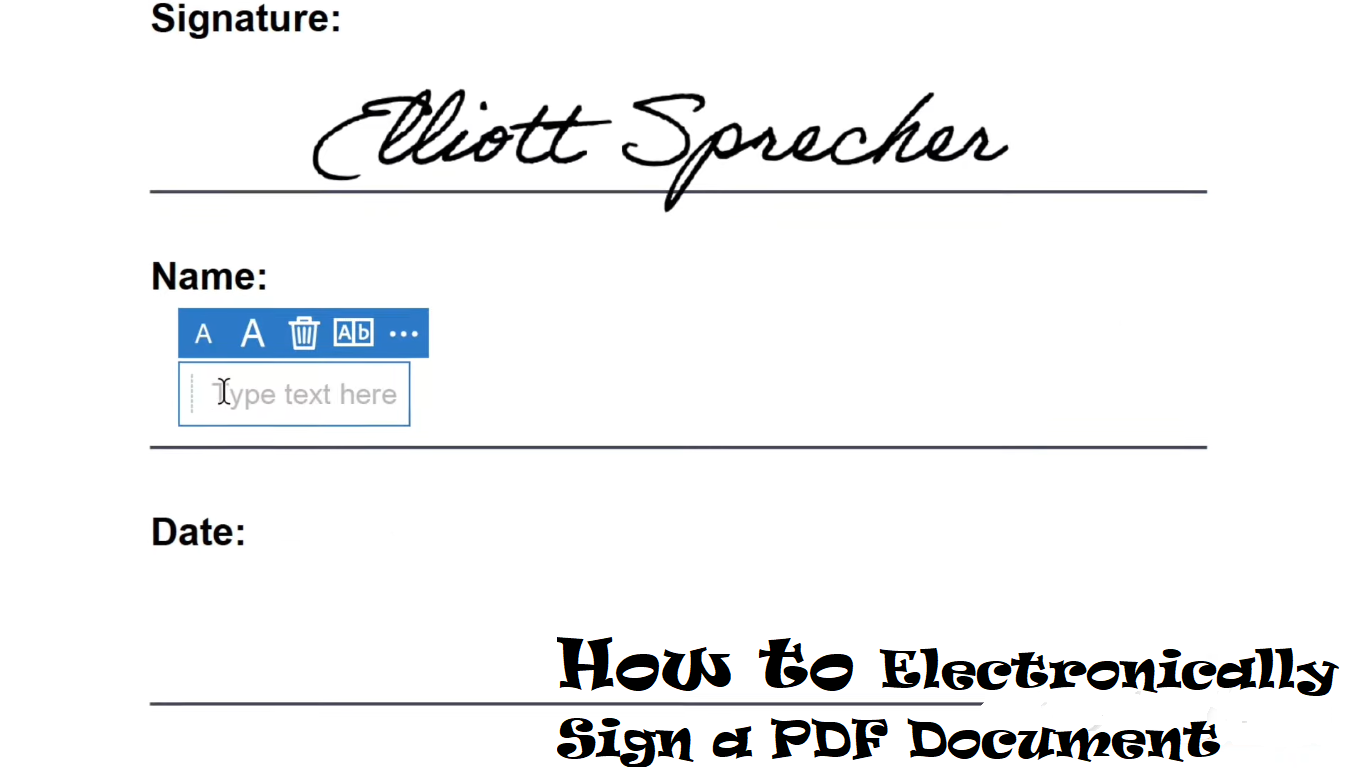
Creating an electronic signature in Microsoft Word is a simple and efficient way to sign documents digitally. Whether you’re signing a contract, a letter, or any other type of document, Word offers several methods to create and insert an electronic signature. This guide will walk you through the process step-by-step, ensuring you can add your signature with ease and confidence.
Why Use an Electronic Signature in Word?
1. Convenience
Electronic signatures eliminate the need for printing, signing, and scanning documents. You can sign and send documents directly from your computer.
2. Security
Digital signatures in Word can be secured with encryption, ensuring that your signature and the document are protected from tampering.
3. Legality
Electronic signatures are legally binding in many jurisdictions, provided they meet specific requirements for authenticity and consent.
4. Efficiency
Adding an electronic signature saves time and streamlines the document signing process, making it faster and more efficient.
Methods to Create an Electronic Signature in Word
Method 1: Drawing Your Signature
- Open Your Document: Open the Word document you need to sign.
- Insert a Drawing Canvas:
- Go to the “Insert” tab.
- Click “Shapes” and select “New Drawing Canvas.”
- Draw Your Signature:
- In the drawing canvas, select “Scribble” from the Shapes menu.
- Use your mouse or a stylus to draw your signature.
- Save and Position Your Signature:
- Once you’re satisfied with the signature, you can move the drawing canvas to the desired location in your document.
- Resize the signature if necessary.
Method 2: Using an Image of Your Signature
- Create and Scan Your Signature:
- Sign your name on a piece of white paper.
- Scan the signature or take a clear photo of it.
- Insert the Image:
- Open your Word document.
- Go to the “Insert” tab and select “Pictures.”
- Choose the scanned image of your signature and insert it into the document.
- Position and Resize the Image:
- Move the image to the desired location.
- Resize the image to fit appropriately within the document.
Method 3: Using Digital Signature Tools
- Enable the Developer Tab:
- Go to “File” > “Options” > “Customize Ribbon.”
- Check the “Developer” box and click “OK.”
- Insert a Signature Line:
- In the “Developer” tab, click on “Insert” and choose “Signature Line.”
- Fill out the details in the Signature Setup box and click “OK.”
- Sign the Document:
- Double-click the signature line.
- In the Signature box, type your name, or select an image of your handwritten signature.
- Click “Sign.”
Best Practices for Electronic Signatures in Word
1. Ensure Document Security
Use Word’s encryption features to protect your document from unauthorized access or tampering. Go to “File” > “Info” > “Protect Document” and choose the appropriate security settings.
2. Maintain Signature Authenticity
Ensure your signature is clear and recognizable. Avoid using overly stylized or illegible signatures.
3. Consent and Intent
Ensure all parties involved consent to use electronic signatures and understand their legal implications.
4. Backup Signed Documents
Always keep a backup of your signed documents, either on a secure cloud storage service or an external hard drive, to prevent data loss.
5. Use Trusted Devices
Sign documents on devices you trust and avoid using public or unsecured networks to maintain the integrity and security of your signature.
Conclusion
Creating and using electronic signatures in Word is a straightforward process that offers numerous benefits in terms of convenience, security, and efficiency. Whether you draw your signature, insert an image, or use digital signature tools, you can sign documents quickly and confidently. By following the steps and best practices outlined in this guide, you can ensure your electronic signatures are secure, legally binding, and professionally implemented.
FAQ Section
1. Can I create an electronic signature directly in Word?
Yes, you can create an electronic signature directly in Word using the drawing canvas, inserting an image of your handwritten signature, or using digital signature tools.
2. Is an electronic signature in Word legally binding?
Yes, electronic signatures in Word are legally binding in many jurisdictions, provided they meet specific requirements for authenticity and consent.
3. How do I ensure the security of my electronic signature in Word?
Ensure security by using Word’s encryption features, maintaining clear and recognizable signatures, and signing documents on trusted devices.
4. Can multiple people sign the same Word document electronically?
Yes, multiple people can sign the same Word document electronically. Each signer can follow the process to add their signature.
5. What should I do if I encounter issues with my electronic signature in Word?
If you encounter issues with your electronic signature in Word, try the following steps:
- Check Software Updates: Ensure your Microsoft Word software is up to date.
- Verify Settings: Confirm that the document’s security settings allow for electronic signatures.
- Contact Support: If problems persist, reach out to Microsoft Support for assistance.
By following these steps, you can troubleshoot common issues and ensure your electronic signatures function smoothly in Microsoft Word.